Campaigns \ Screens
The Screen Page allows you to configure and design each of the screens selected in the Screenflow section, as well as the static screens.
The page is divided into several zones, which are explained below:
Left Zone: A list of the campaign's screens. Clicking on any screen in this list will switch the current view to that specific screen.
Right Zone: A list of blocks that can be dragged and dropped onto the active screen to customize its content.
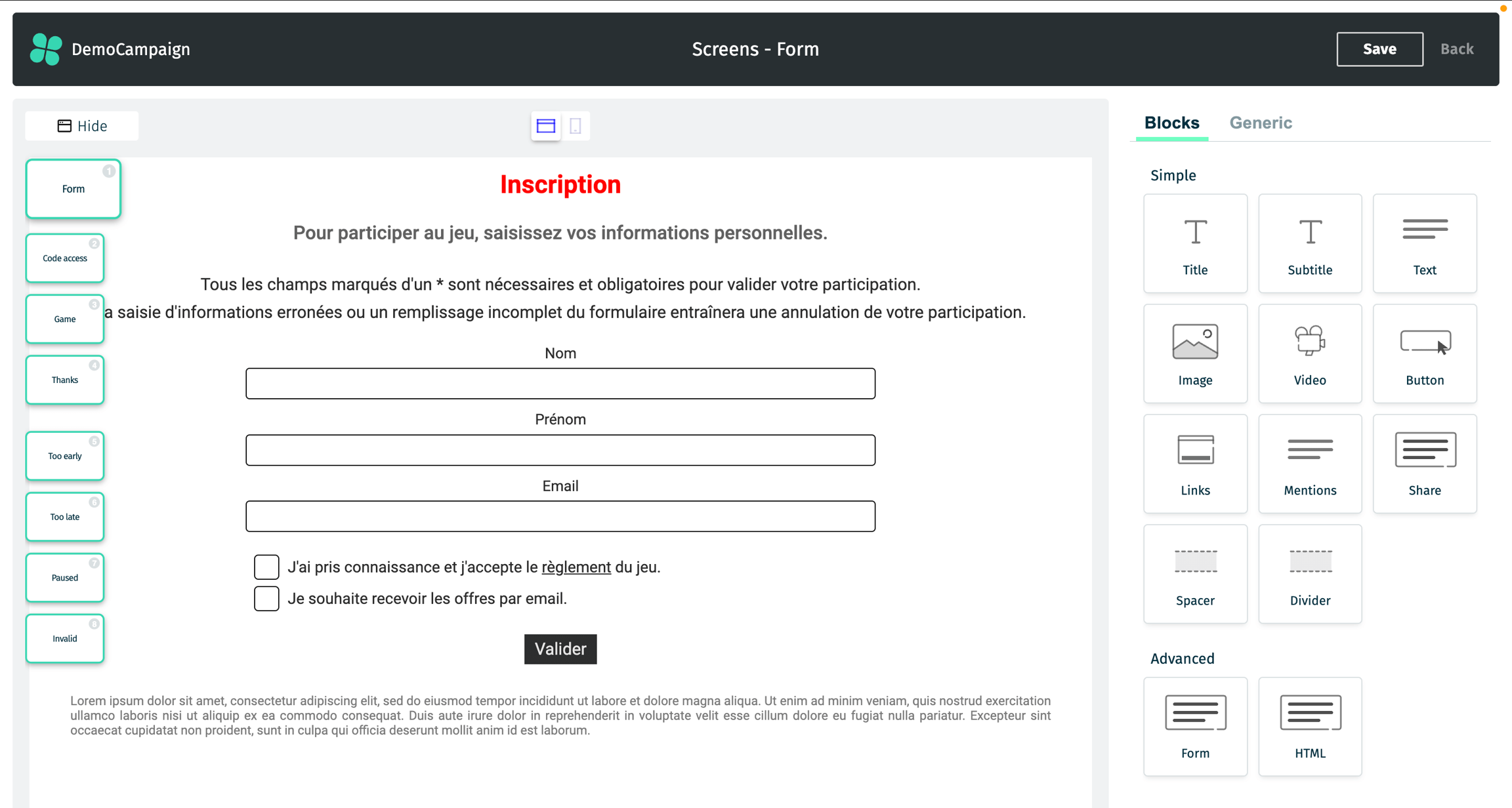
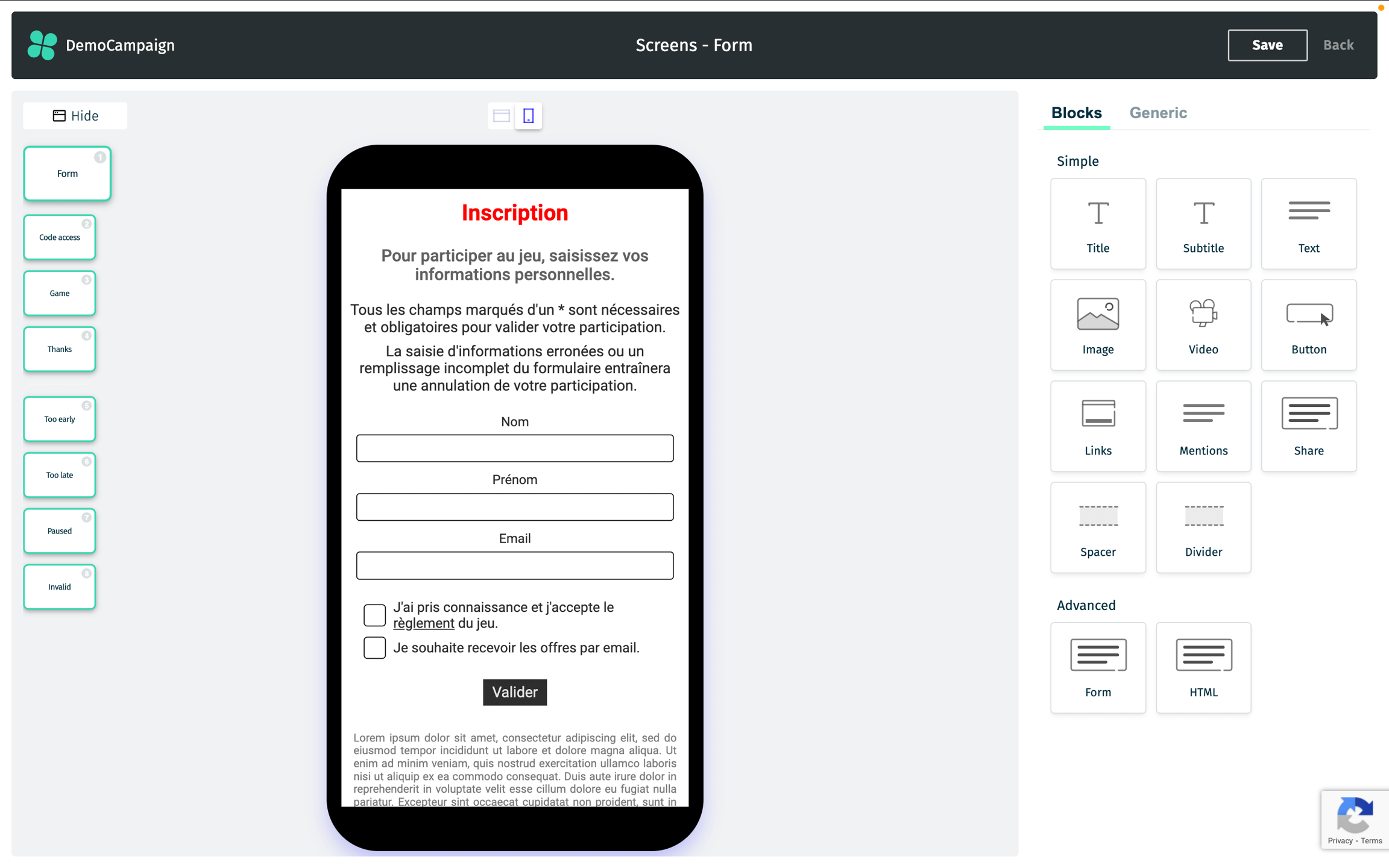
You can also preview how the active screen will look on mobile by clicking the mobile icon at the top center of the screen. To return to the default desktop view, click the desktop icon.
Additionally, the right panel can be switched to Generic options, where you can:
Edit the slug of the current screen (the URL structure displayed to clients as WEBSITE/CAMPAIGN/SCREEN).
Access other screen-specific settings for further customization, such as:
Color Palette: This palette will be applied to any screen, with the option to personalize the following:
Titles and buttons (color1)
Subtitles and hovered buttons (color2)
Links and mentions (color3)
Button text color (color4)
Text color (color5)
While these are the default colors, you can override the style for any block at any time. However, please note that if a block is "unlinked," it won't update when you modify any values in your color palette.
Background Color and/or Image: Customize the background for each screen.
Content Max Width: Control the width of the content area, allowing it to be centered without taking up the entire screen, which is especially useful for desktop designs.
Font Family: Choose from a list of well-known Google Web Fonts.
Custom Styling (CSS - Advanced Users): Apply custom styles using CSS to further tailor the screen's design.
As displayed below, clicking on a block (while not in the Generic options) will show its built-in options. Custom Styling should only be used for styles that are not available by default, or when you want to apply global styling.
Clicking on a block while in the Generic options allows you to select the CSS selector for that block, making it easy to add custom styles specifically for it.
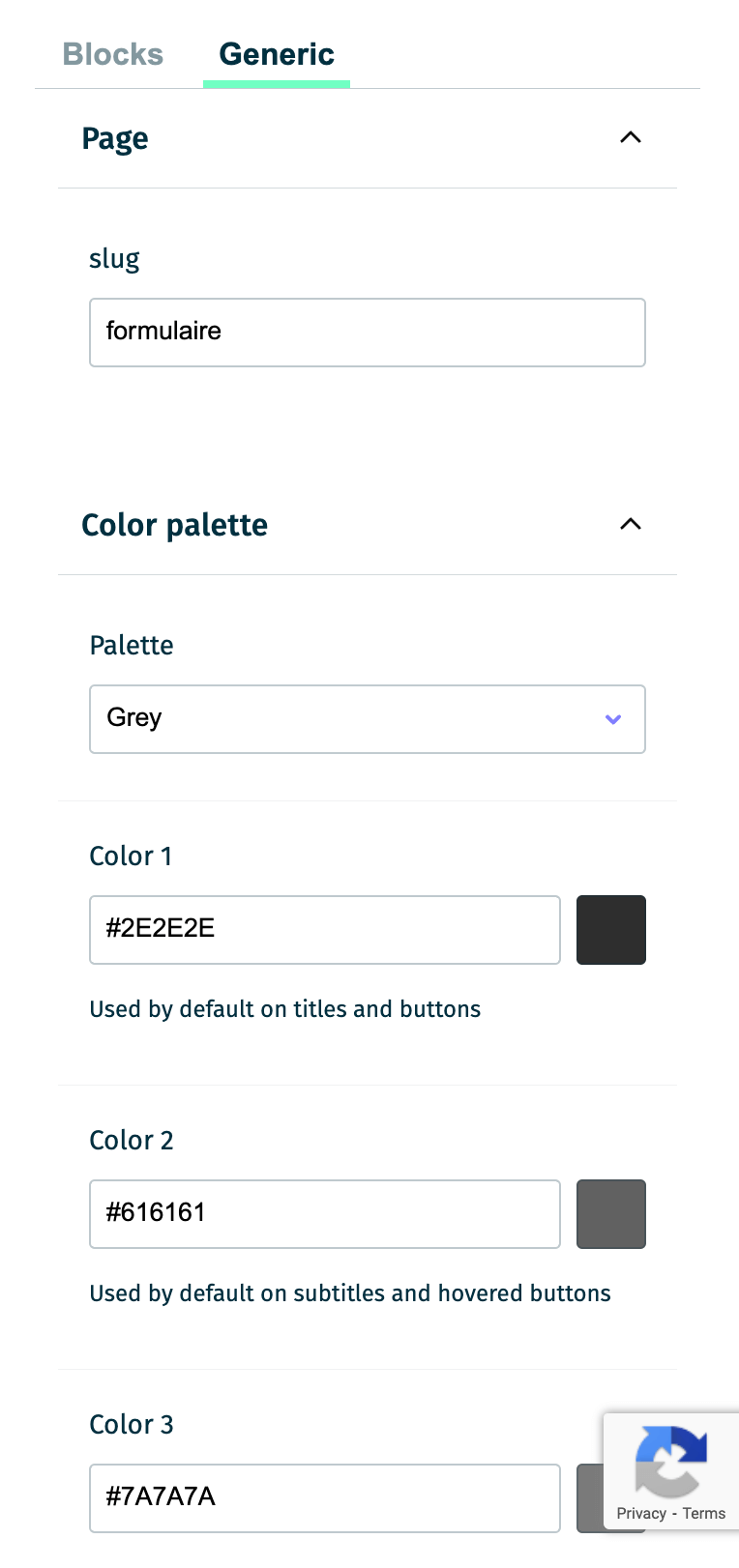
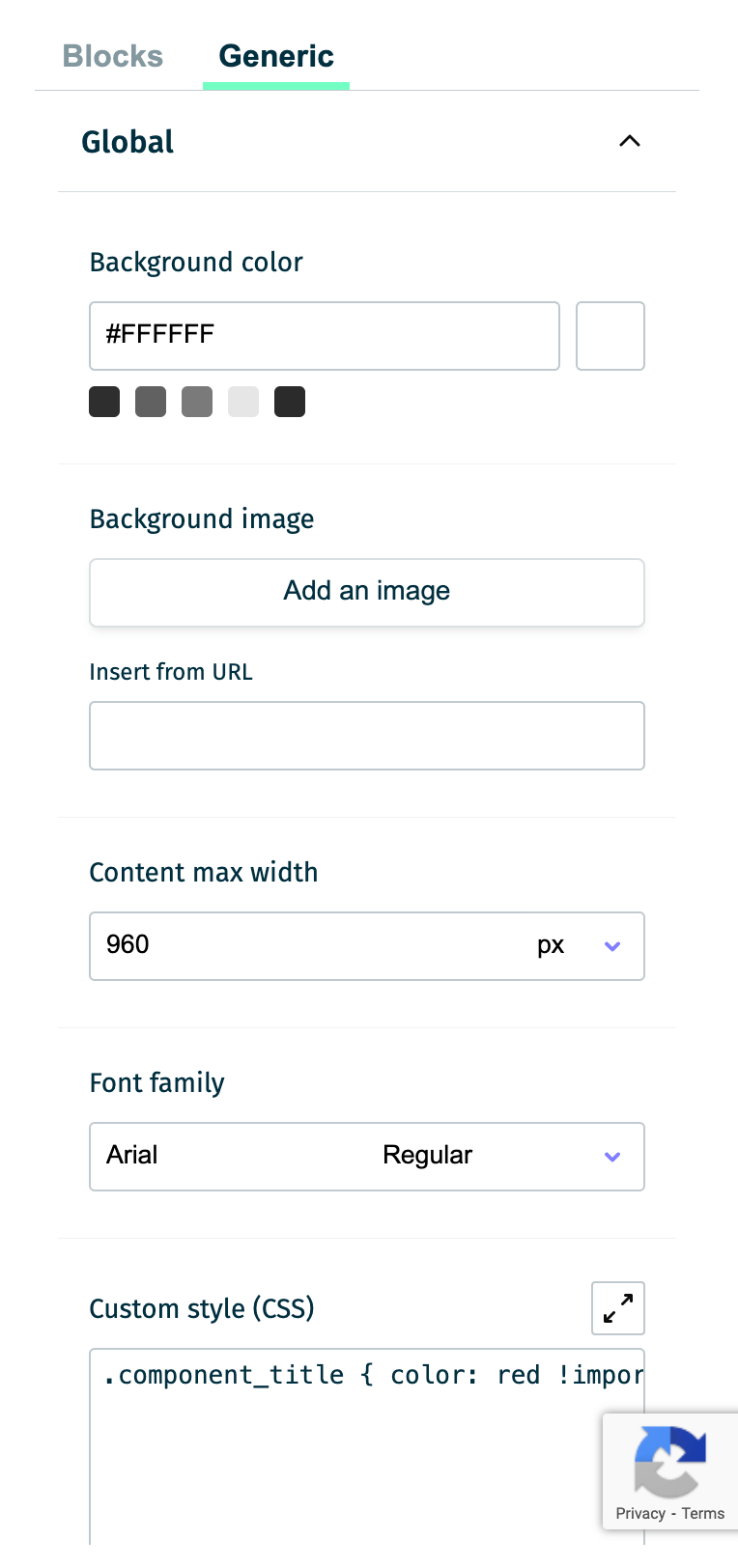
In this example, the Grey palette was used, providing basic grey colors for the app. Additionally, we specified in CSS that every title should be red (this can also be done for each title by clicking on its block, but applying it here changes it globally with a single line of code!).
The specific cases mentioned above having been explained, clicking on a block will, by default, display the options for that block. These options include both content and style settings.
For more information on the different block types and their available options, please refer to the Blocks Page.
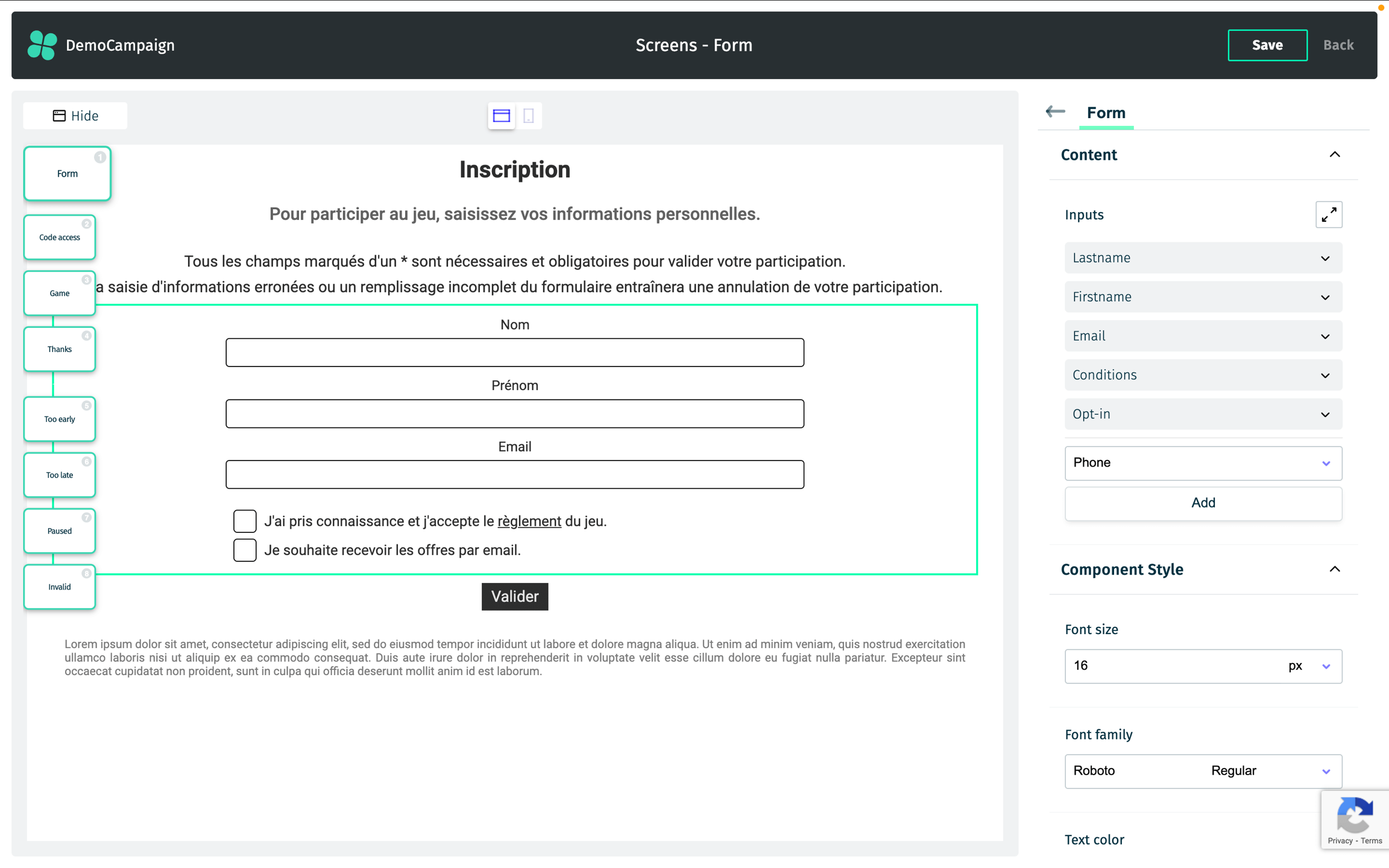
The data collected on one screen, such as lastname, firstname, and email, can be used on subsequent screens. For example, if these details are gathered on the first screen, you can reference them later using placeholders like {{lastname}}, {{firstname}}, and {{email}} in any text block on the following screens. This also works for custom form fields, as long as you add a unique key to them.
Last updated